Put the chat on your website
Pick your website builder and follow a few simple steps.
5 min read
Find your steps
- 1Open your dashboard and stay on Overview.
- 2Find the box Add the chat widget to your site.
- 3Click the name of your website builder: WordPress, Shopify, Wix, Squarespace, Webflow, or Something else.
- 4Follow the steps that appear. They include your own code, ready to copy.
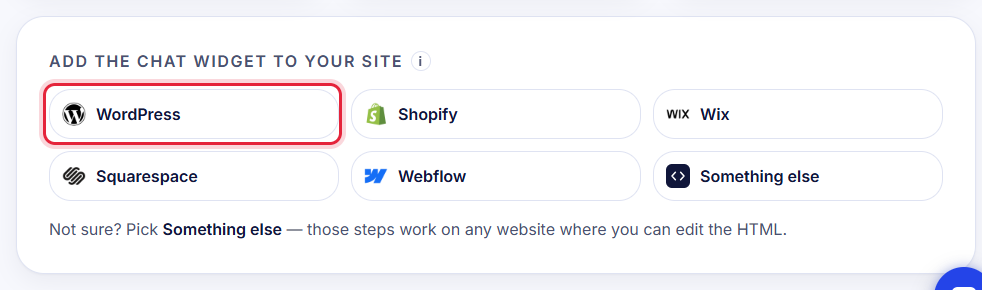
Tip: Not sure what your website is built with? Pick Something else. Those steps work on almost any website.
WordPress
Use our free plugin. No code needed. See Install the WordPress plugin.
Shopify
- 1In Shopify, go to Online Store → Themes.
- 2Next to your theme, click ⋯ and choose Edit code.
- 3On the left, open the Layout folder and click theme.liquid.
- 4Scroll to the very bottom. Paste your code on its own line, just above </body>.
- 5Click Save.
Wix
- 1In Wix, go to Settings, then Custom Code (under Advanced).
- 2Click + Add Custom Code and paste your code into the box.
- 3Name it Chat Widget. Under 'Add Code to Pages', choose All pages.
- 4Set 'Place Code in' to Body – end.
- 5Click Apply, then publish your site.
Squarespace
- 1Go to Settings → Advanced → Code Injection.
- 2Paste your code into the Footer box (not Header).
- 3Click Save.
Tip: Squarespace only allows this on the Business plan or higher. On a Personal plan, send us a message and we will help.
Webflow
- 1Open your project and go to Site settings → Custom code.
- 2Paste your code into Footer code (the box that says 'Before </body> tag').
- 3Click Save changes, then click Publish.
Tip: Webflow needs a paid Site plan for custom code.
Any other website
- 1Open the file that every page of your website shares (often index.html, footer.php or a layout file).
- 2Paste your code on its own line, just above </body>.
- 3Save and upload the change.
Tip: Using Google Tag Manager? Make a new Custom HTML tag, paste the code, and set it to fire on All Pages.
Check it worked
Open your website in a new window. A round chat bubble should appear in the bottom corner within a minute. Click it and ask a question.
Don't see it? Refresh the page once. Still nothing? Send us a message from Support and tell us your website address.
Stuck?
Ask the chat bubble in your dashboard, use Support in the left menu, or email support@chatcobalt.com. A real person reads every message.
Related guides
Chat Cobalt is a Codebold IT Solutions product.